

If you’re looking for an affordable VPS with generous resources, Contabo is one of the most popular choices. Whether you want to host websites, run applications, or deploy development environments, getting started is straightforward.
In this guide, I’ll walk you through the complete process of buying a Contabo VPS, even if it’s your first time purchasing a virtual server.
Tip: Before placing your order, read our detailed Contabo Review to understand its pros, cons, and real-world performance.
Step 1: Choose the Right VPS Plan
Visit the Contabo website and navigate to the VPS section. You’ll find multiple plans with different CPU, RAM, storage, and bandwidth allocations.
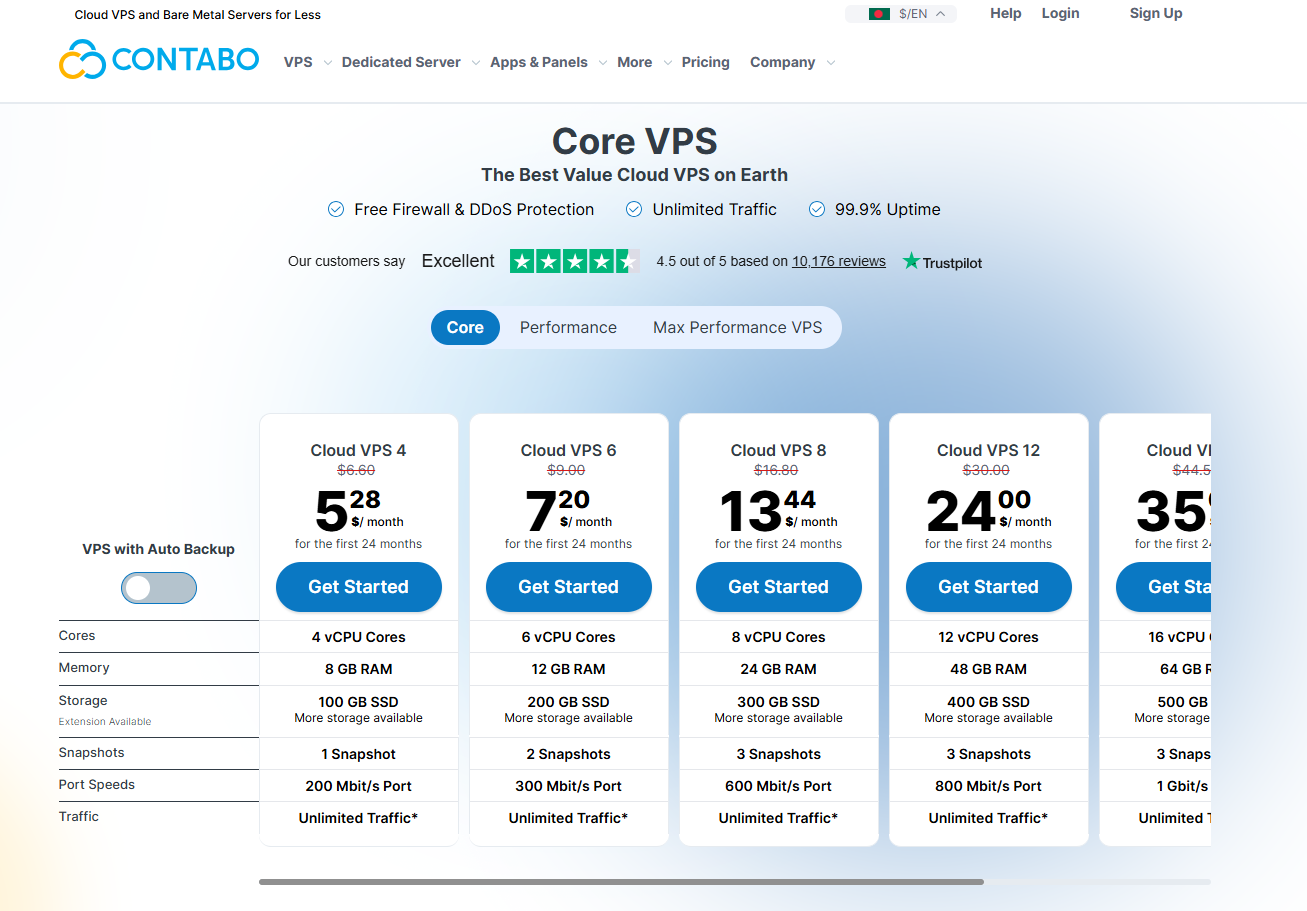
If you’re hosting a few WordPress websites or small business projects, an entry-level VPS is usually enough. For larger applications or multiple websites, choose a plan with more RAM and CPU cores.
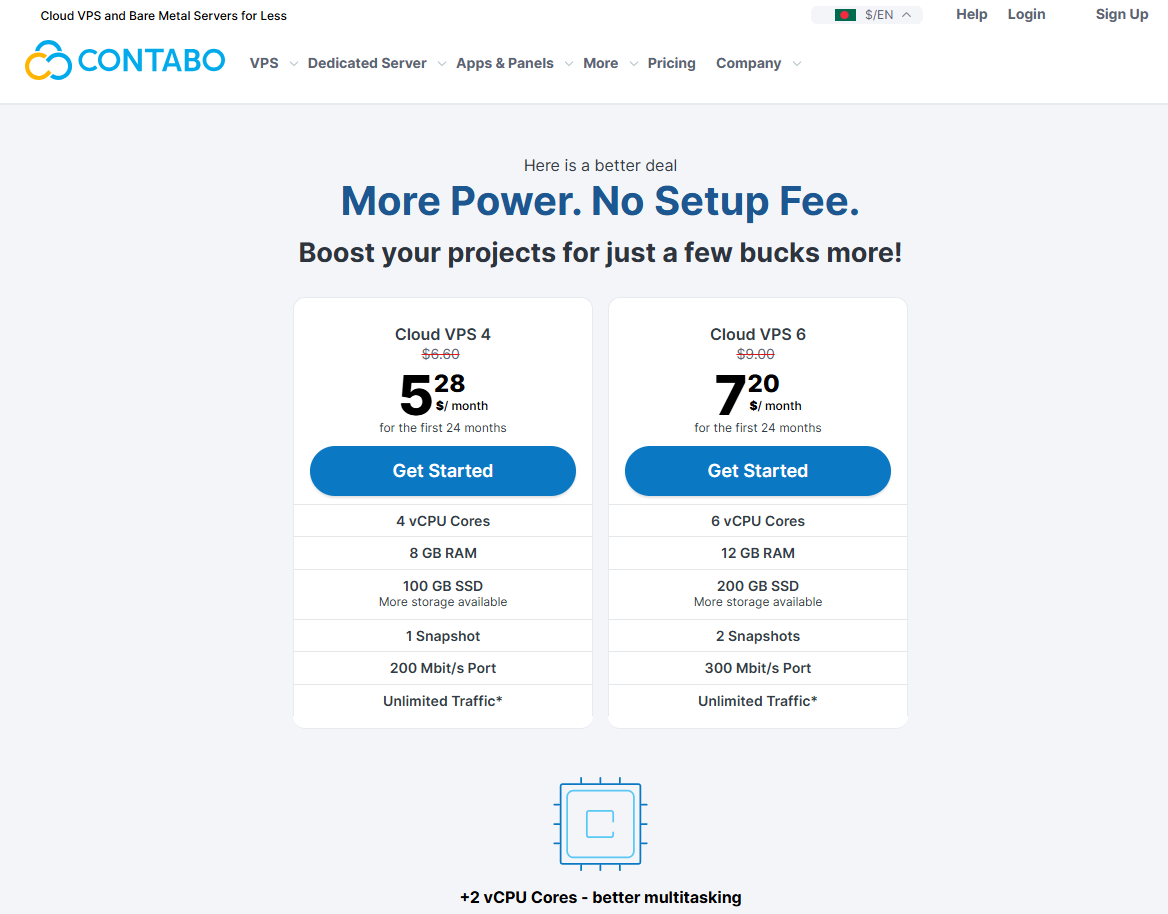
Click on “Get Started” again.
Configure your VPS server and click on “Next”.
Fillup your personal details.
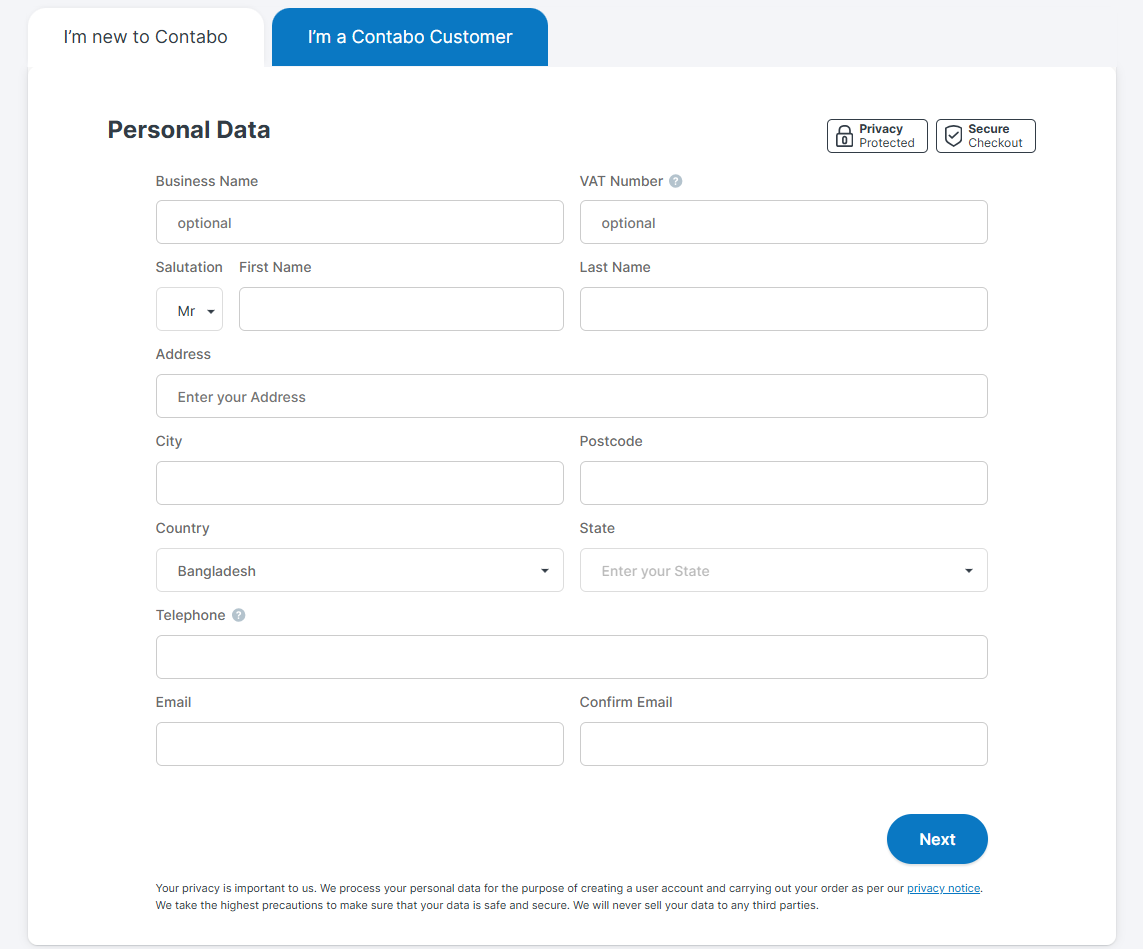
Make payment and click on “Next”.
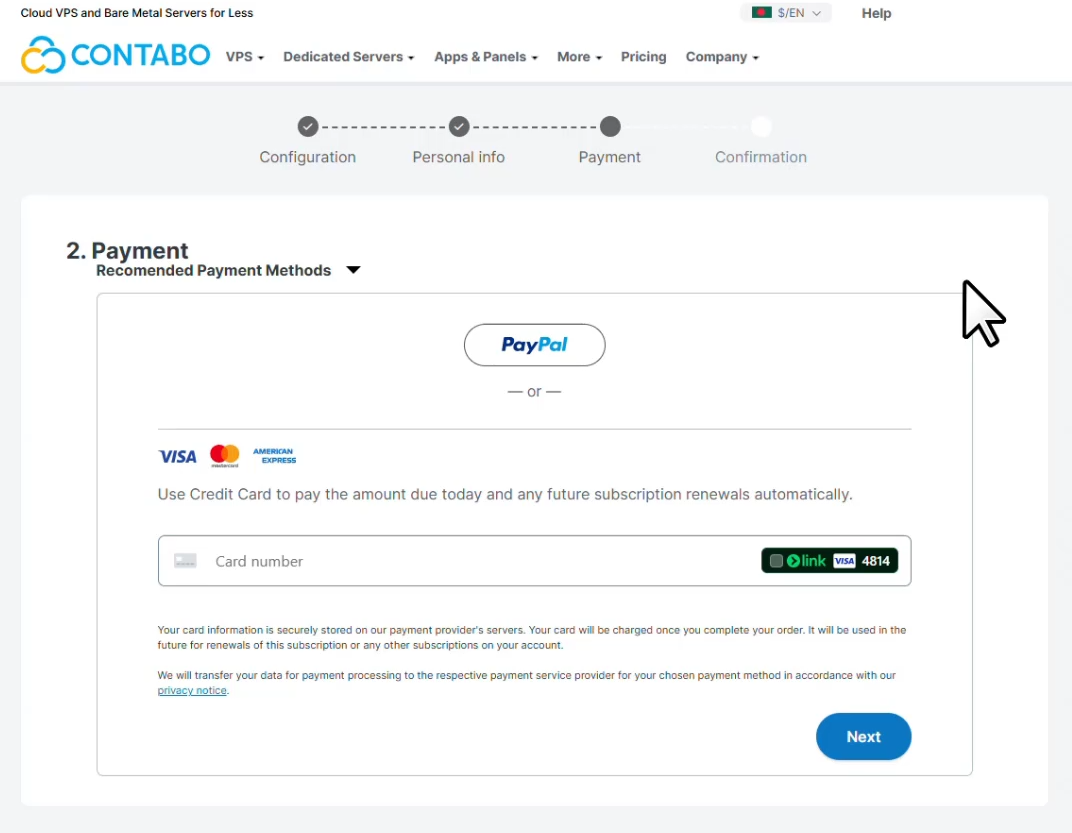
Then in the next page click on “Order and Pay”.
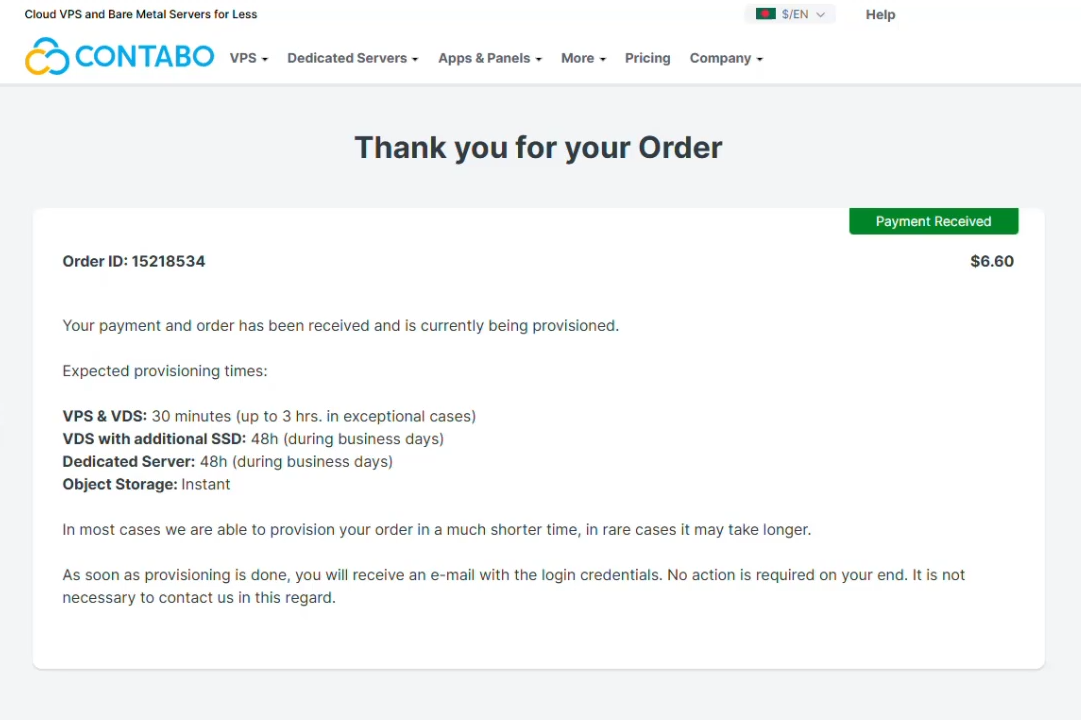
Done! You have sucessfully purchased your VPS on Contabo.
Take a moment to compare the specifications while you are buying a Contabo VPS. Contabo lets you customize several options during checkout, including storage type and server location.
Essential Tips
Configure Your Server
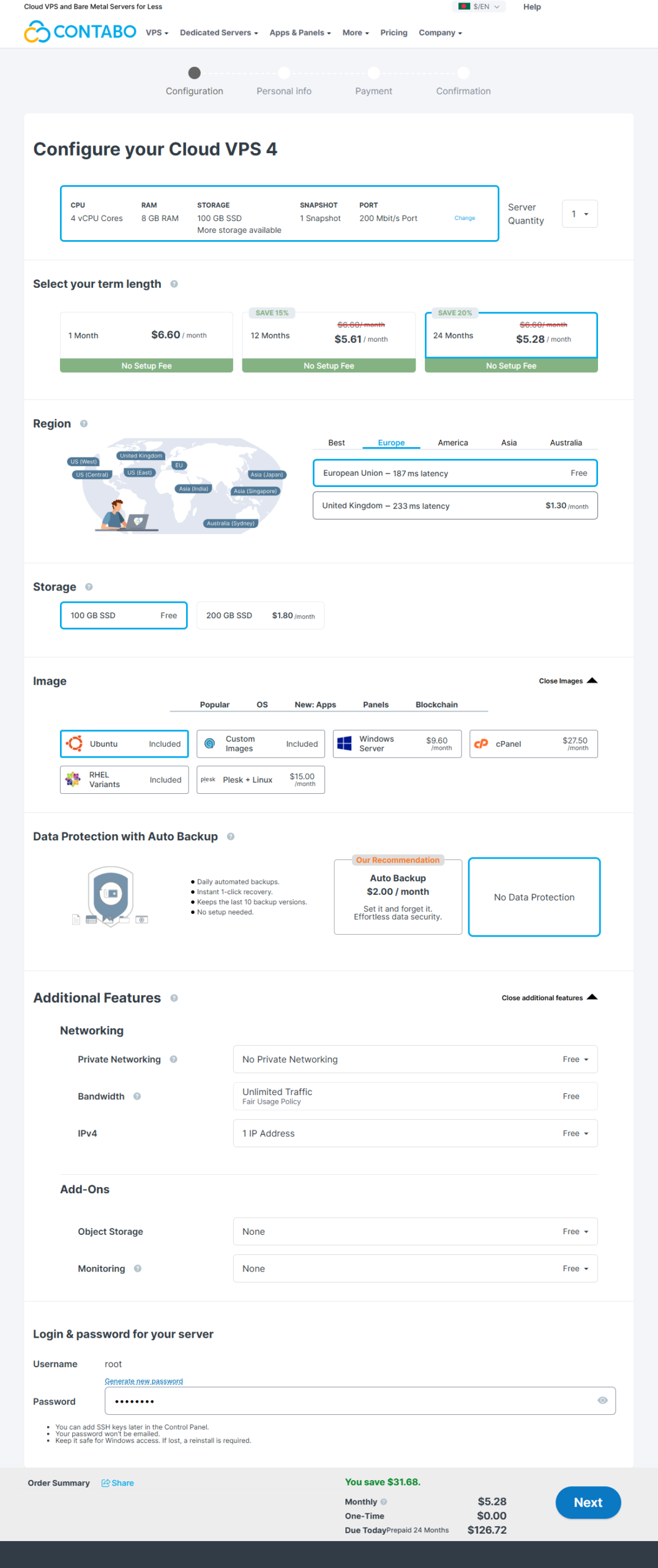
After selecting your VPS (listed above), you’ll be asked to configure your server.
Here you can choose:
- Billing cycle
- Data center location
- Operating system (Ubuntu, Debian, AlmaLinux, Windows, etc.)
- Additional services like backups or monitoring
Most beginners prefer Ubuntu because it’s beginner-friendly and has excellent documentation. Once you’ve finished customizing your server, continue to checkout.
Create Your Contabo Account
If you’re a new customer, enter your personal information, including your name, email address, phone number, and billing address.
Make sure all details are accurate. In some cases, Contabo may request identity verification before provisioning your VPS. This is a normal security process and helps prevent fraud.
Apply a Coupon Code
Before completing your payment, don’t forget to check whether any promotional offers are available.
20% OFF
Get 20% Discount on 24 months plan.
You can save money by using the latest Contabo Coupon Code. If you’re planning your purchase around the holiday season, keep an eye on the Contabo Black Friday Sale, where some of the biggest discounts are usually available.
Complete the Payment
Choose your preferred payment method and review your order carefully. Once everything looks correct, click Order & Pay.
After successful payment, Contabo begins provisioning your VPS. You’ll receive login details by email once your server is ready. Provisioning time can vary depending on demand and whether manual verification is required.
Final Thoughts
Buying a Contabo VPS is a simple process that usually takes only a few minutes. The most important decisions are selecting the right plan, choosing an appropriate server location, and installing the operating system that best fits your project.
If you’re still comparing providers, check out our guide to the Top 5 Best VPS Hosting Services to see how Contabo stacks up against other popular VPS providers.